
Click here (For Detailed Document)
1. Purpose
The purpose of this document is to guide Hein+Fricke employees on how to use the company’s MediaWiki platform for accessing, creating, and managing internal documentation. It provides clear instructions on logging in, navigating namespaces, creating and linking pages, and using the Visual Editor. This ensures that employees can efficiently contribute to and benefit from the centralized knowledge base.
2. Scope
This guide applies to all Hein+Fricke employees, contractors, and interns who have been granted access to the MediaWiki platform.
3. Login Instructions
- Login URL: https://doc.heinfricke.team/index.php/
- Click on Microsoft Login and sign in using your Microsoft (official) email address and password.
- Namespace refers to the department or group you have access to (e.g., Department Name).
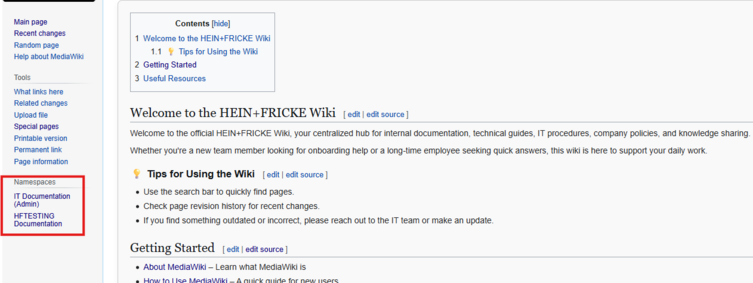
- Once logged in, the namespace menu will be visible on the left-hand side, making navigation easier.

4. Important Notes
- After logging in, you will land on the Main_Page of your namespace.
- Every namespace has its own Main_Page by default.
- To create or edit pages, you must have edit access.
5. Creating Pages in a Namespace
- You can create pages either by directly entering a URL or from within MediaWiki.
- Method 1: Direct URL
- To create a new page, enter the URL in this format:
- Example: https://doc.heinfricke.team/index.php/
- Here, HFTESTING is the namespace, and Test is the page being created.




6. Linking Pages to the Main Page
- To make navigation easier, you can link newly created pages to the namespace’s Main_Page.
- Wikitext Example: The below mention code is written in Mediawiki markdown language.

- In Mediawiki the documents can be created using the Visual Editor. Here is the option to use the Visual Editor. To create new page click on create button and to edit the document use the edit option.

